

Installing CrowdStrike Agentic MDR with Falcon is not like installing normal software (like a Chrome extension or app). It’s an enterprise security service that runs on the CrowdStrike Falcon platform, and setup requires proper access, licensing, and configuration.
In simple terms: You don’t install “Agentic MDR” directly — you deploy CrowdStrike Falcon sensors + enable MDR + AI (Agentic) features.
Also Read: CrowdStrike Agentic MDR: The Future of AI-Powered Threat Response
How to Install CrowdStrike Agentic MDR with Falcon (Step-by-Step Guide)
Here is the complete guide of CrowdStrike Agentic MDR with Falcon installation step-by-step:
Step 1: Get Access to CrowdStrike Falcon Platform
First, you need:
- A subscription to CrowdStrike (Falcon + MDR / Falcon Complete)
- Login access to the Falcon Console
- Customer ID (CID)
Without this, installation is not possible (it’s not public software).
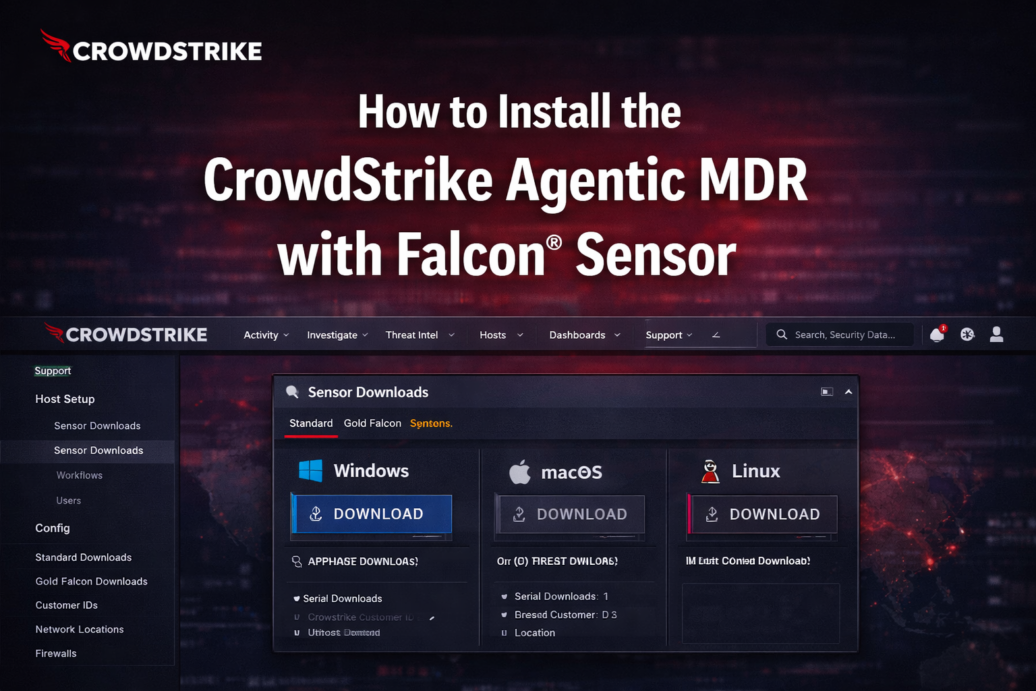
Step 2: Download the Falcon Sensor (Agent)
Inside the Falcon Console:
- Go to: Host Setup → Sensor Downloads
- Download installer based on your OS:
- Windows
- macOS
- Linux
This sensor is the core agent that enables MDR + Agentic AI.
Step 3: Install the Sensor on Devices
For Windows
Run this command:
WindowsSensor.exe /install /quiet /norestart CID=YOUR_CUSTOMER_ID- Requires admin access
- Can deploy via:
- Group Policy
- Microsoft Intune
- SCCM
For Linux
sudo rpm -ivh falcon-sensor.rpm
sudo /opt/CrowdStrike/falconctl -s --cid=YOUR_CUSTOMER_ID
sudo systemctl start falcon-sensor
For macOS
- Install the
.pkgfile - Approve system permissions
- Confirm sensor is active
After install, the device should appear in Falcon Console.
Step 4: Verify Installation
Check:
- Device appears in dashboard
- Sensor status = Healthy
- Cloud connection is active
If not connected, Agentic MDR won’t work.
Step 5: Enable MDR (Managed Detection & Response)
Now enable MDR service:
- Activate Falcon Complete MDR
- Configure:
- Alert workflows
- Response permissions
- Threat handling rules
MDR continuously monitors, detects, and responds to threats automatically.
Step 6: Enable Agentic AI Features (IMPORTANT)
This is where Agentic MDR comes in.
CrowdStrike uses:
- Charlotte AI Agentic Detection
- Agentic Response
- Agentic Workflows
These features:
- Automatically investigate alerts
- Ask/answer security questions
- Take action without human input
Usually enabled by CrowdStrike during onboarding or via enterprise configuration.
Step 7. Configure Security Policies
Go to:
Configuration → Prevention Policies
Set:
- Malware protection
- Behavioral detection
- Response automation
Best practice:
- Start in detect mode
- Then switch to prevention mode gradually
Step 8: Deploy Across All Systems
- Roll out to all endpoints (PCs, servers, cloud)
- Use phased deployment:
- Test → Pilot → Full rollout
Avoid installing everywhere at once to prevent issues.
Step 9: Continuous Optimization
After setup:
- Monitor alerts weekly
- Tune policies monthly
- Work with CrowdStrike analysts
MDR improves over time with tuning.
Very Important Notes (CrowdStrike Agentic MDR with Falcon)
You CANNOT:
- Install Agentic MDR like normal software
- Use it without subscription
- Run it offline
You MUST:
- Have CrowdStrike account
- Deploy Falcon sensor
- Enable MDR services
FAQs
1. Can I install CrowdStrike Agentic MDR with Falcon for free?
No, it’s a paid enterprise solution.
2. Is it a software download?
Partly — you install the Falcon agent, but MDR + AI runs in the cloud.
3. Do I need coding skills?
No, but basic IT/admin knowledge helps.
4. How long does setup take?
- Small setup: few hours
- Enterprise rollout: days to weeks
5. Is it automatic after install?
Partly — detection is automatic, but setup + policies require configuration.
Final Takeaway
CrowdStrike Agentic MDR with Falcon is not just installed — it’s deployed as a full security system.
Think of it like this:
- Falcon Sensor = Installation
- MDR + Agentic AI = Intelligence + Automation
If you want, I can give you:
- A beginner-friendly setup checklist
- WordPress / small business use case
- Cost + alternatives comparison