Skip to content
-
Subscribe to our newsletter & never miss our best posts. Subscribe Now!
  • https://www.facebook.com/
  • https://twitter.com/
  • https://t.me/
  • https://www.instagram.com/
  • https://youtube.com/
Top Trending Topics and Stories Buzzlancer

Trending Topics and Stories

Top Trending Topics and Stories Buzzlancer

Trending Topics and Stories

  • Home
  • AI News
  • Digital Marketing
  • Home
  • AI News
  • Digital Marketing
Subscribe
Close

Search

How to Connect Google Workspace CLI to OpenClaw
LatestAI News

How to Connect Google Workspace CLI to OpenClaw (Best Step-by-Step Guide)

By Joni Thakur
April 3, 2026 2 Min Read
0

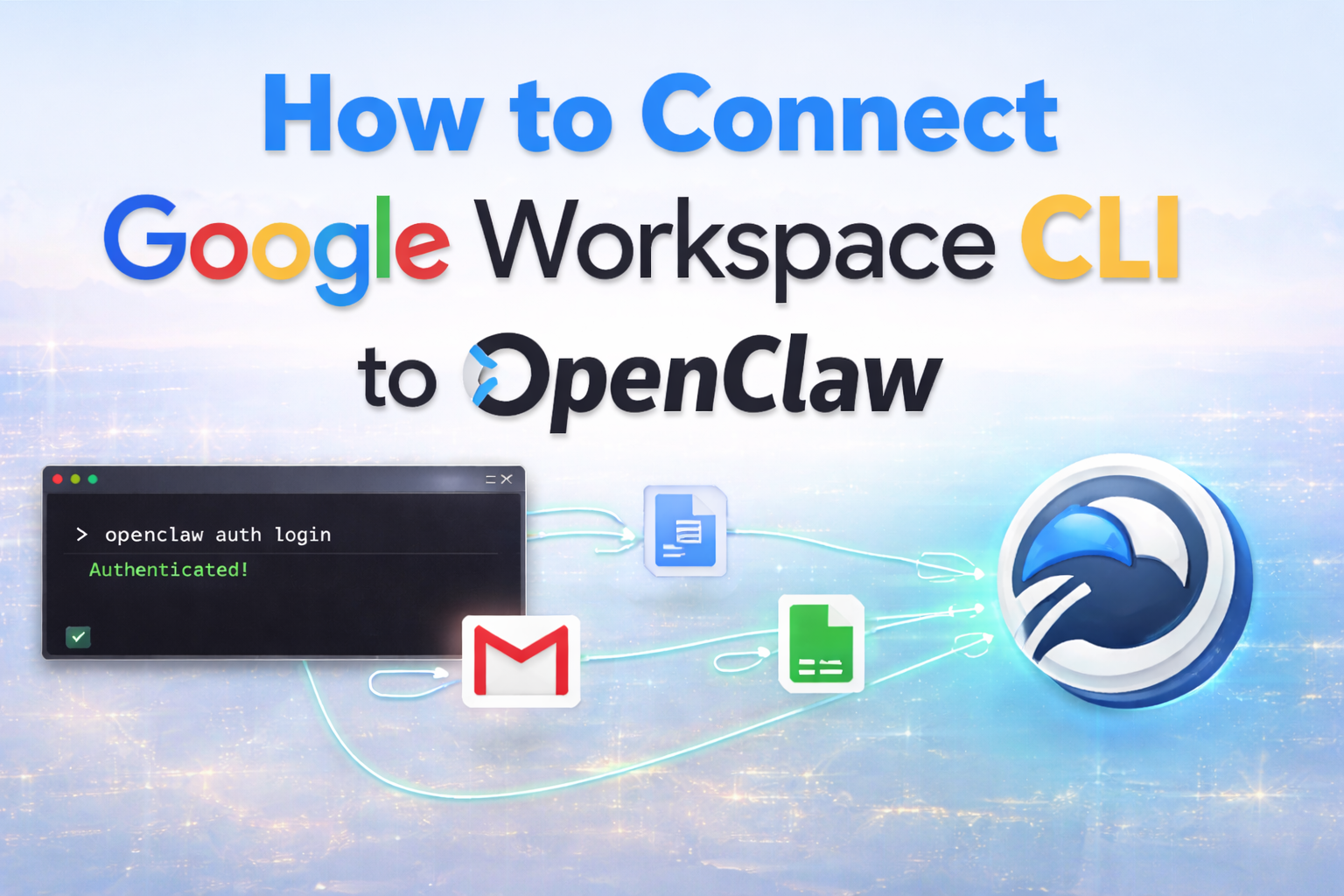
You can connect Google Workspace CLI to OpenClaw by linking your Google account via APIs and authenticating it securely.

Once connected, AI can start controlling Gmail, Docs, and Sheets automatically.

Table of Contents

Toggle
  • What Is Google Workspace CLI (OpenClaw)?
  • Connect Google Workspace CLI to OpenClaw: Step-by-Step Setup Guide (Beginner-Friendly)
    • 1. Install Google Workspace CLI (OpenClaw)
      • Usually via terminal:
    • 2. Set Up Google Cloud Project
    • 3. Create OAuth Credentials
    • 4. Authenticate OpenClaw with Google
    • 5. Configure Environment
    • 6. Test the Connection
  • Example: First AI Automation Task
  • Pro Tips for Better Setup
  • FAQs
  • Final Takeaway

What Is Google Workspace CLI (OpenClaw)?

Google Workspace CLI (OpenClaw) is a command-line interface designed to connect AI agents with tools like Gmail, Google Docs, and Google Sheets.

In simple terms, it acts like a bridge between AI and your work apps.

Instead of clicking around manually, you can:

  • Send emails automatically
  • Create and edit documents
  • Manage spreadsheets
  • Build workflows using AI

Think of it as automation + AI + Google Workspace combined.

Read More: Google Workspace CLI (OpenClaw): Best AI Automation Guide

Connect Google Workspace CLI to OpenClaw: Step-by-Step Setup Guide (Beginner-Friendly)

1. Install Google Workspace CLI (OpenClaw)

First, install the CLI tool on your system.

Usually via terminal:

npm install -g openclaw-cli

(or follow official install method if different)

2. Set Up Google Cloud Project

To access Gmail, Docs, and Sheets, you need API access.

  • Go to Google Cloud Console
  • Create a new project
  • Enable APIs:
    • Gmail API
    • Google Docs API
    • Google Sheets API

3. Create OAuth Credentials

This step connects your account securely.

  • Go to APIs & Services → Credentials
  • Click Create Credentials → OAuth Client ID
  • Choose:
    • Desktop App (for CLI)

Download the credentials JSON file

4. Authenticate OpenClaw with Google

Now connect CLI with your Google account.

openclaw auth login
  • A browser window will open
  • Sign in to your Google account
  • Grant permissions

This links OpenClaw to your Workspace tools

5. Configure Environment

Set your credentials file:

export GOOGLE_APPLICATION_CREDENTIALS="path/to/credentials.json"

(Windows users use set instead of export)

6. Test the Connection

Run a simple command:

openclaw gmail list

If emails show up, you’re connected

Example: First AI Automation Task

Try sending an email:

openclaw gmail send \
--to "example@gmail.com" \
--subject "Test" \
--body "Hello from OpenClaw AI"

Boom! Your first automated action

Pro Tips for Better Setup

  • Start with Gmail automation (easiest)
  • Use test accounts before scaling
  • Combine with AI tools (like GPT agents)
  • Secure your credentials properly

FAQs

Do I need coding skills?
Basic terminal knowledge helps, but AI tools can simplify usage.

Is it safe to connect my Google account?
Yes, if you use official APIs and OAuth authentication.

Can I connect multiple accounts?
Yes, with proper configuration.

Final Takeaway

Connecting Google Workspace CLI to OpenClaw takes just a few steps—but unlocks powerful AI automation.

Once set up, you can:

  • Automate emails
  • Generate documents
  • Manage spreadsheets

All with AI doing the work for you.

Tags:

AIAI systemAI-PoweredAutonomous AI Agents
Author

Joni Thakur

Joni is passionate Digital Creator specializing in Digital Marketing and Artificial Intelligence (AI). With strong expertise in Website Development (Wordpress, Front-end, Back-end), SEO, content strategy, paid advertising, and AI-powered tools like ChatGPT (Codex), Gemini, Canva and many more, I help brands grow their online presence and build powerful digital identities.

Follow Me
Other Articles
RAG The future of AI search and chatbots
Previous

What is RAG?: Why RAG is the Future of AI Search and Chatbots 2026

Meta Launched Muse Code AI Coding Agent
Next

Meta Launched Muse Code AI Coding Agent to Challenge OpenAI and Anthropic

No Comment! Be the first one.

Leave a Reply Cancel reply

Your email address will not be published. Required fields are marked *

Search

Recent Posts

  • Google Ads and Analytics AI Reports: What You Need to Know
  • Meta Launched Muse Code AI Coding Agent to Challenge OpenAI and Anthropic
  • How to Connect Google Workspace CLI to OpenClaw (Best Step-by-Step Guide)
  • What is RAG?: Why RAG is the Future of AI Search and Chatbots 2026
  • How to Install the CrowdStrike Agentic MDR with Falcon® Sensor (Guide 2026)

Categories

  • AI News
  • AI Tools
  • Digital Marketing
  • Latest

Newsmagify

Start writing, no matter what. The water does not flow until the faucet is turned on.

Address
123 Main Street
New York, NY 10001

Hours
Monday—Friday: 9:00AM–5:00PM
Saturday & Sunday: 11:00AM–3:00PM

Recent Posts

  • Google Ads and Analytics AI Reports: What You Need to Know
  • Meta Launched Muse Code AI Coding Agent to Challenge OpenAI and Anthropic
  • How to Connect Google Workspace CLI to OpenClaw (Best Step-by-Step Guide)
  • What is RAG?: Why RAG is the Future of AI Search and Chatbots 2026
  • How to Install the CrowdStrike Agentic MDR with Falcon® Sensor (Guide 2026)

Categories

  • AI News (14)
  • AI Tools (8)
  • Digital Marketing (5)
  • Latest (16)

Search

Copyright 2026 — Buzzlancer. All rights reserved. Blogsy WordPress Theme