
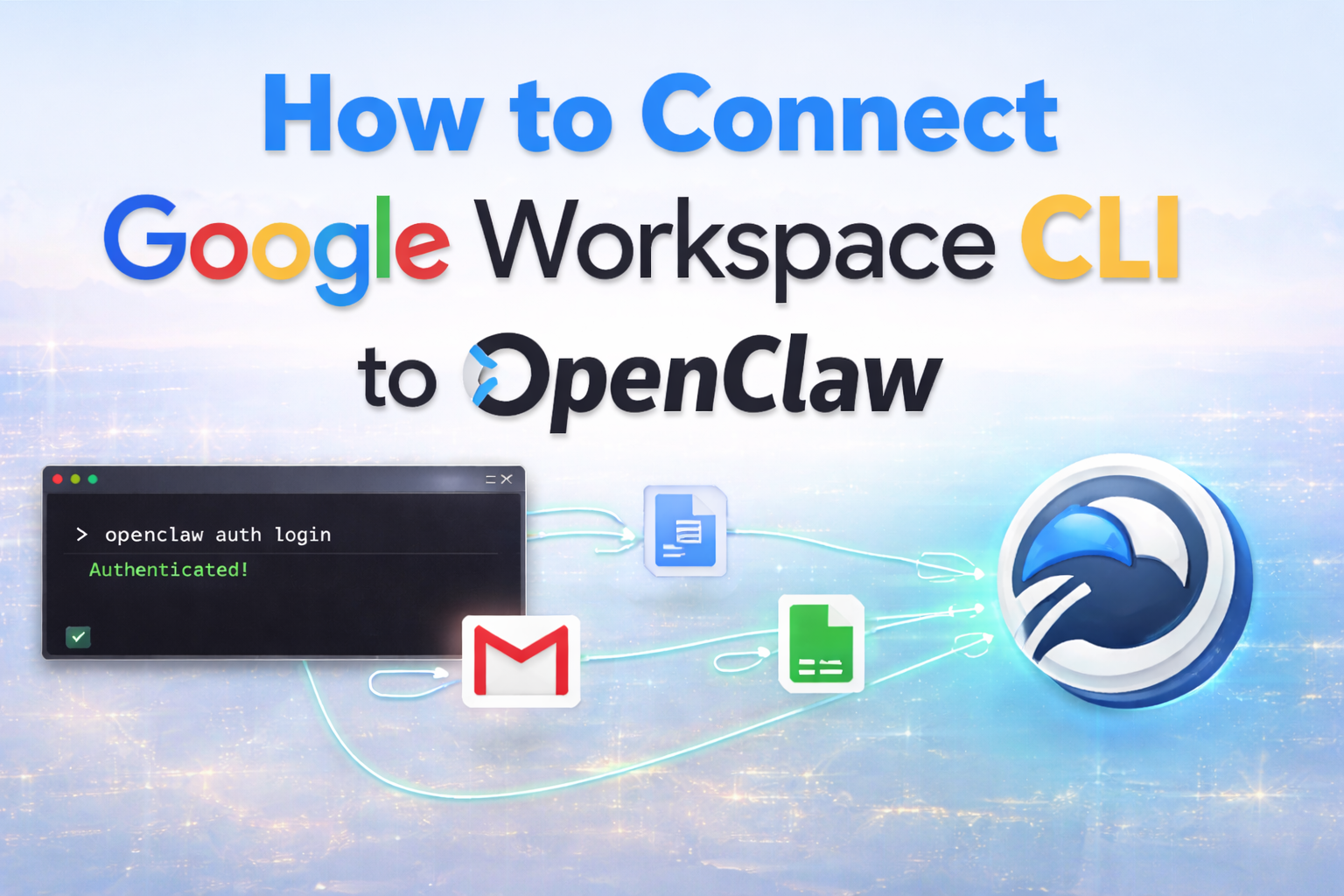
You can connect Google Workspace CLI to OpenClaw by linking your Google account via APIs and authenticating it securely.
Once connected, AI can start controlling Gmail, Docs, and Sheets automatically.
What Is Google Workspace CLI (OpenClaw)?
Google Workspace CLI (OpenClaw) is a command-line interface designed to connect AI agents with tools like Gmail, Google Docs, and Google Sheets.
In simple terms, it acts like a bridge between AI and your work apps.
Instead of clicking around manually, you can:
- Send emails automatically
- Create and edit documents
- Manage spreadsheets
- Build workflows using AI
Think of it as automation + AI + Google Workspace combined.
Read More: Google Workspace CLI (OpenClaw): Best AI Automation Guide
Connect Google Workspace CLI to OpenClaw: Step-by-Step Setup Guide (Beginner-Friendly)
1. Install Google Workspace CLI (OpenClaw)
First, install the CLI tool on your system.
Usually via terminal:
npm install -g openclaw-cli(or follow official install method if different)
2. Set Up Google Cloud Project
To access Gmail, Docs, and Sheets, you need API access.
- Go to Google Cloud Console
- Create a new project
- Enable APIs:
- Gmail API
- Google Docs API
- Google Sheets API
3. Create OAuth Credentials
This step connects your account securely.
- Go to APIs & Services → Credentials
- Click Create Credentials → OAuth Client ID
- Choose:
- Desktop App (for CLI)
Download the credentials JSON file
4. Authenticate OpenClaw with Google
Now connect CLI with your Google account.
openclaw auth login- A browser window will open
- Sign in to your Google account
- Grant permissions
This links OpenClaw to your Workspace tools
5. Configure Environment
Set your credentials file:
export GOOGLE_APPLICATION_CREDENTIALS="path/to/credentials.json"(Windows users use set instead of export)
6. Test the Connection
Run a simple command:
openclaw gmail listIf emails show up, you’re connected
Example: First AI Automation Task
Try sending an email:
openclaw gmail send \
--to "example@gmail.com" \
--subject "Test" \
--body "Hello from OpenClaw AI"
Boom! Your first automated action
Pro Tips for Better Setup
- Start with Gmail automation (easiest)
- Use test accounts before scaling
- Combine with AI tools (like GPT agents)
- Secure your credentials properly
FAQs
Do I need coding skills?
Basic terminal knowledge helps, but AI tools can simplify usage.
Is it safe to connect my Google account?
Yes, if you use official APIs and OAuth authentication.
Can I connect multiple accounts?
Yes, with proper configuration.
Final Takeaway
Connecting Google Workspace CLI to OpenClaw takes just a few steps—but unlocks powerful AI automation.
Once set up, you can:
- Automate emails
- Generate documents
- Manage spreadsheets
All with AI doing the work for you.